Workstations
Workstations are defined per site.
A workstation is a terminal in the venue. It also has links defined to what order devices get used and what pin entry devices are available to the terminal.
View Workstations
In this section, you can see a comprehensive list of all your workstations along with their key details. The following information is available for each workstation:
| Field Name | Description |
|---|---|
| ID | A unique identification number for the workstation. |
| Terminal No | The specific terminal ID assigned to this workstation at the site. |
| Has Fob Reader | If set to "Yes," it means multiple people can use this terminal with key fobs. If set to "No," the terminal is designated for use by a single operator. |
| QR Reader | Describes the method used to scan QR codes, whether through a handheld scanner or a camera. |
| Auth ID | An external authentication ID associated with the workstation. |
| Cash Drawer | Specifies the printer connected to the cash drawer, if applicable. |
| Receipt Printer | Indicates the designated printer for printing receipts. |
| Backup Receipt Printer | In case the primary receipt printer fails, this field tells you where to redirect the printing. |
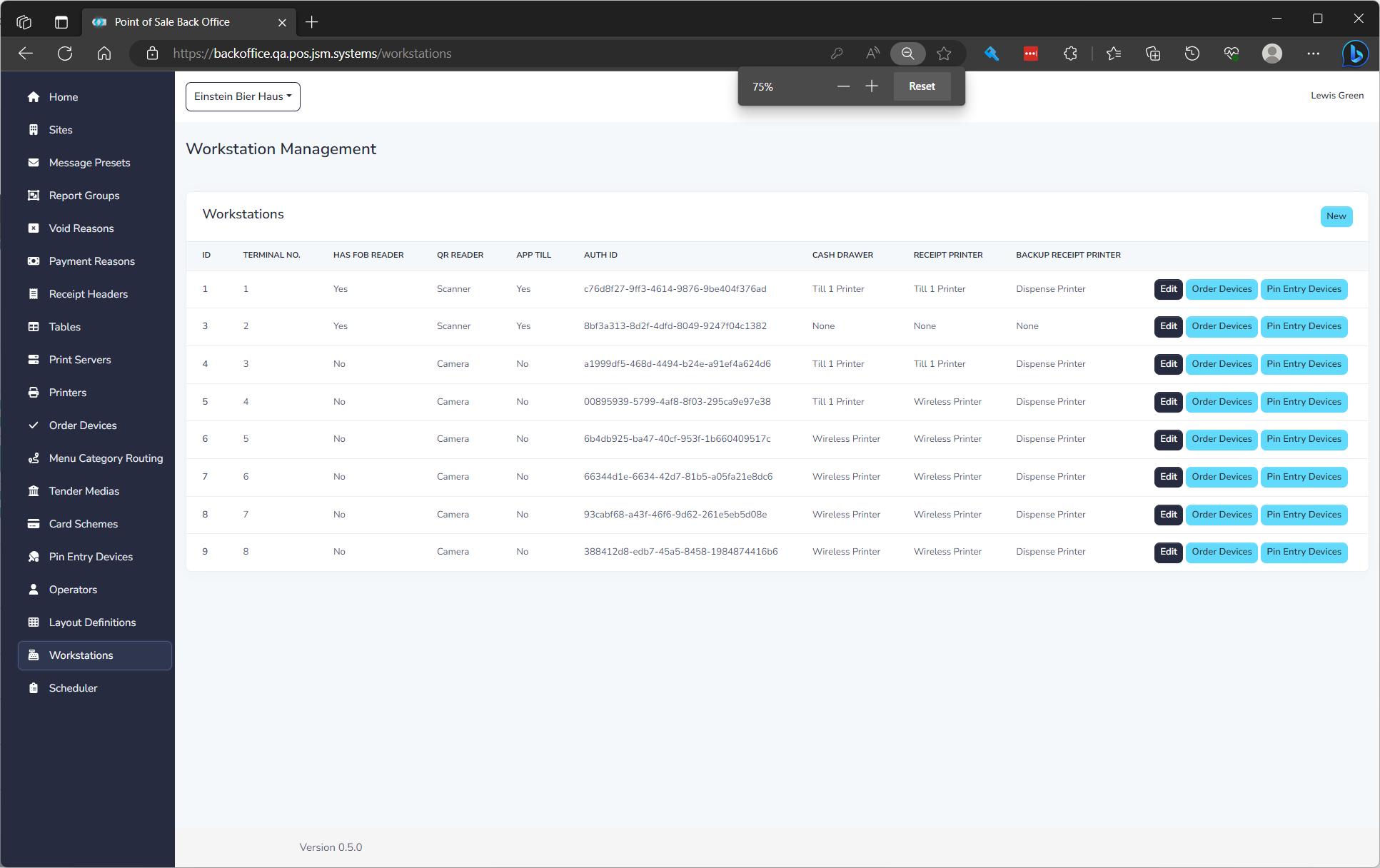
The list displays of all Workstations and the following details:
Order Devices
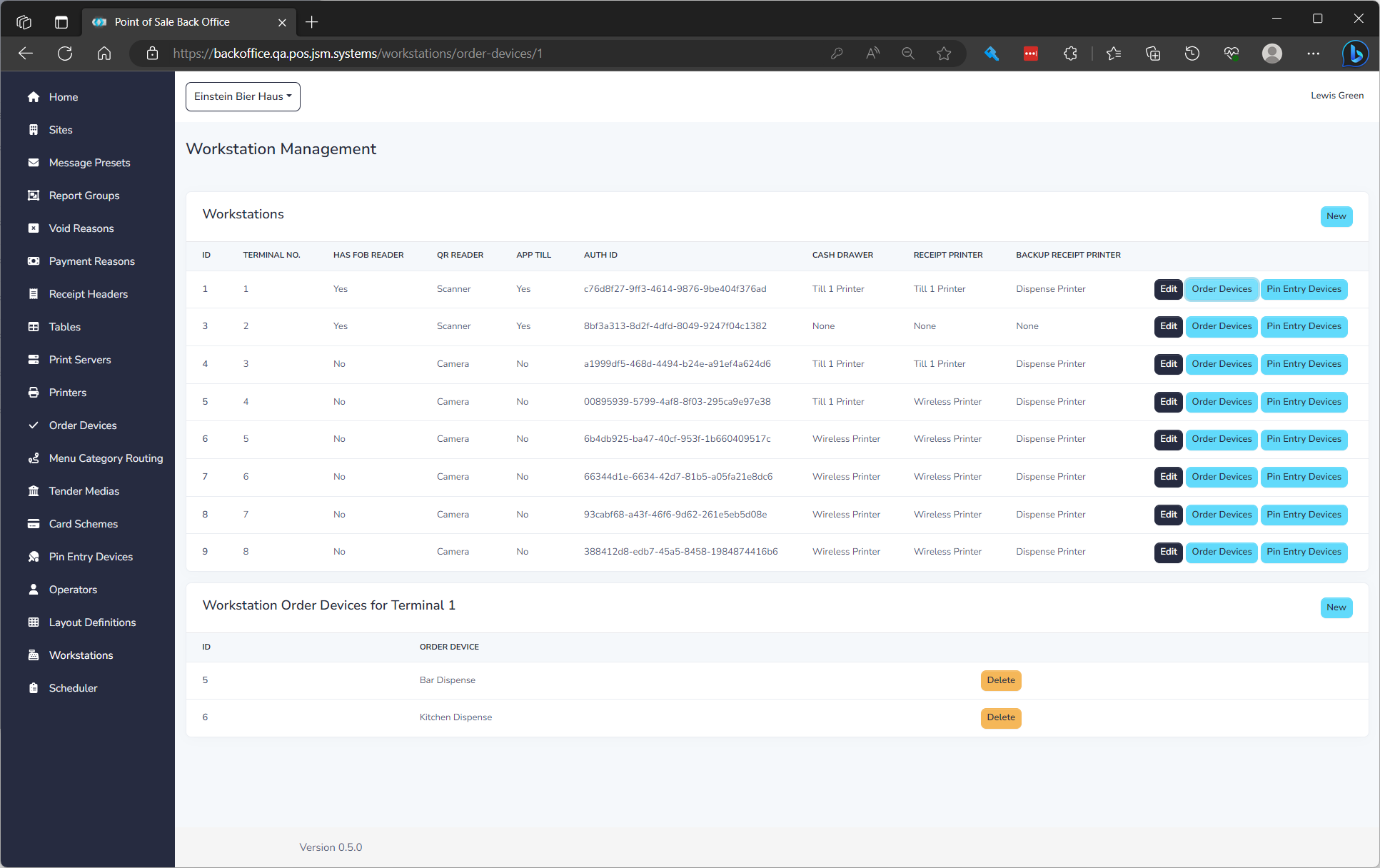
Workstations can be linked to specific order devices, which enables you to enable only certain dispense printers based on the requirements. For instance, a main bar workstation may only need to be linked to the kitchen dispense printer since the drinks are prepared there. On the other hand, a tablet terminal might require both kitchen and bar dispense printers.
Pin Entry Devices
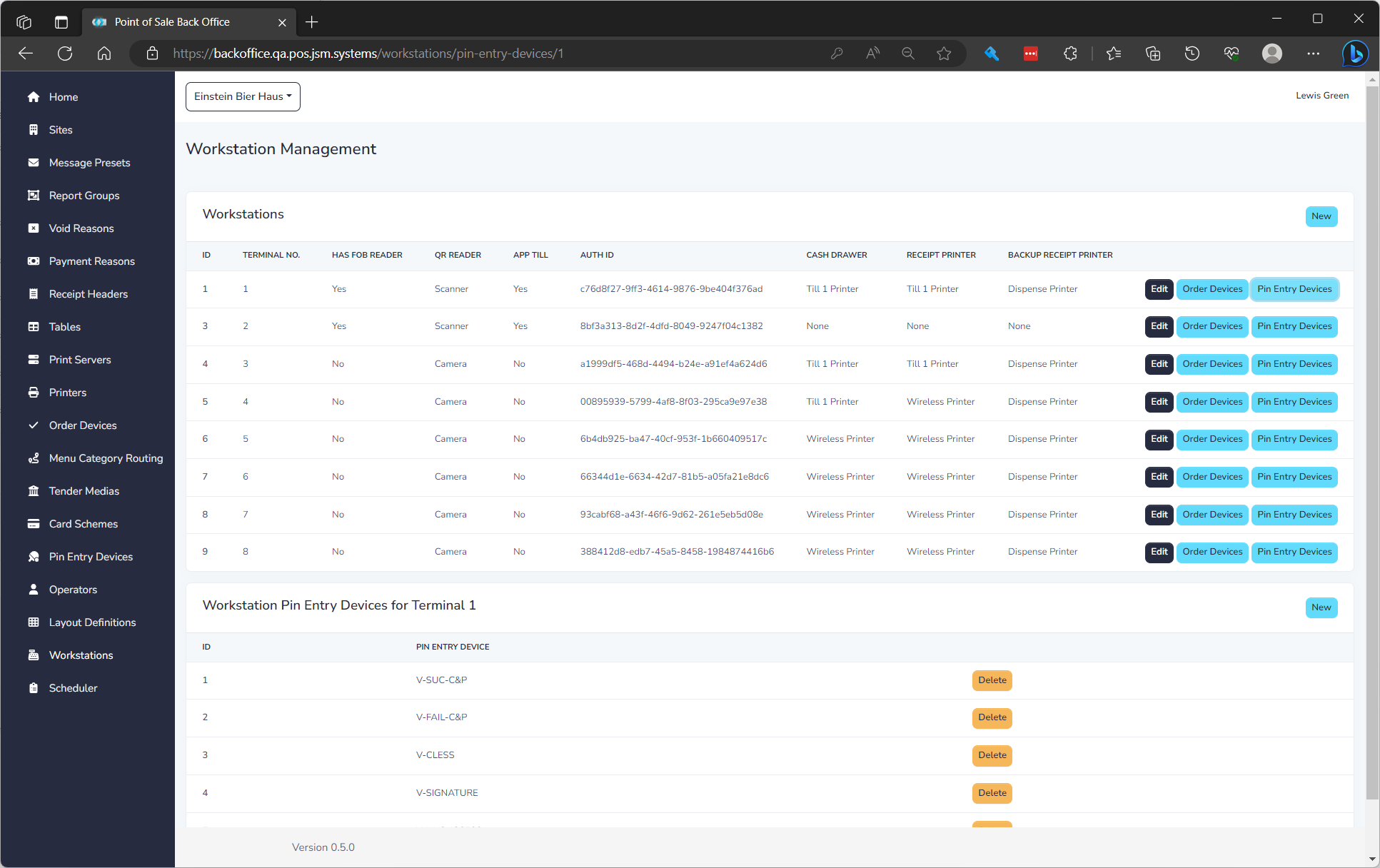
Pin entry devices can also be associated with workstations. This association determines which pin entry devices are visible when the "CARD" option is selected, particularly when EFT (Electronic Funds Transfer) is enabled.
Category Restrictions
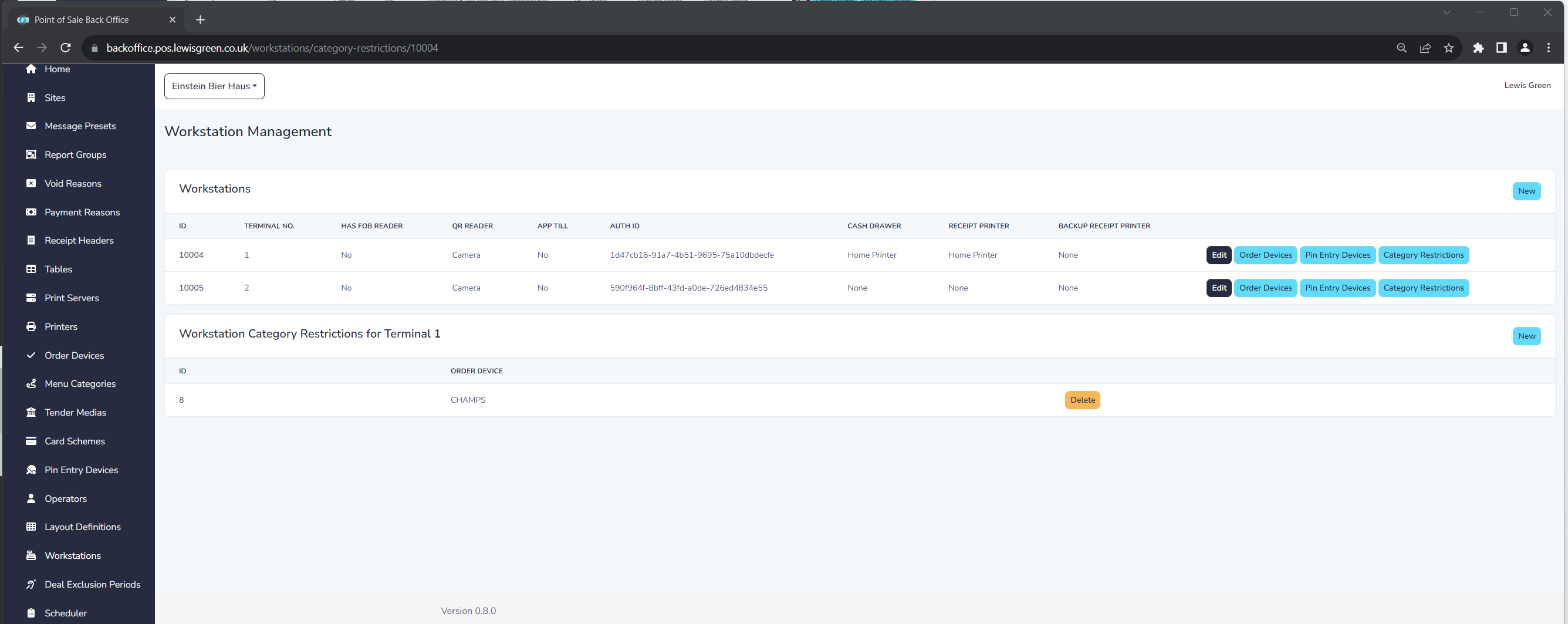
A workstation by default will show all categories that have the "Visible By Default" flag on. This is including searching. When you restrict a workstation to a set of categories, only menu items in these categories will be visible on the terminal.
Create a Workstation
To create a new workstation, simply click on the "New" button. You can then proceed to fill in the necessary properties, as explained in the next section.
Edit a Workstation
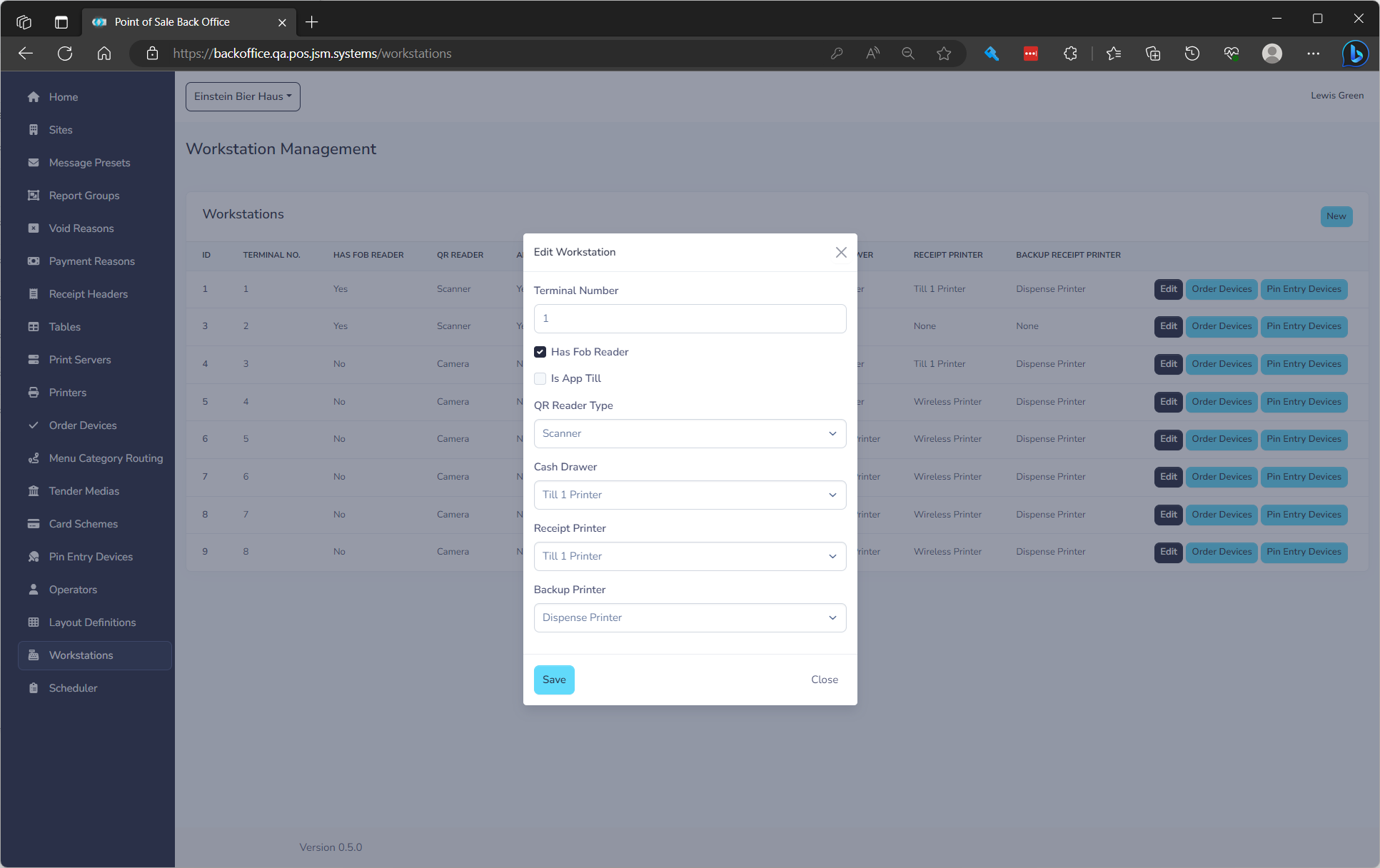
If you need to make changes to an existing workstation, locate the desired workstation in the list and click on the "Edit" button. The following fields can be modified:
| Field Name | **Description ** | Required |
|---|---|---|
| Terminal No | Assign a unique terminal ID per site for the workstation. | Yes |
| Has Fob Reader | Specify whether the workstation requires fobs for multiple user operation or is designated for a single operator. | Yes |
| QR Reader | Choose the method for scanning QR codes, such as using a handheld scanner or camera. | Yes |
| Cash Drawer | If applicable, specify the printer connected to the cash drawer. | No |
| Receipt Printer | Indicate the printer to be used for printing receipts. | No |
| Backup Receipt Printer | Define the alternative printer to use in case the primary receipt printer fails. | No |